This support document describes the process of creating a template in the Schema App Highlighter Extension. This document includes instructions about how to create a template, and open existing templates in the Extension.
TABLE OF CONTENTS
How to Create a Template
Ideally you will be working from a scope to author your template. During the scoping process you should identify priority and group them based on primary entity and HTML templating. Use the Schema.org documentation to learn more about useful ways to describe relationships and attributes.
Create a Template
Once you've logged in and selected a project, you'll be prompted to Create a Template or open an existing template.
- Step 1: Ensure you're on the URL you want to mark up
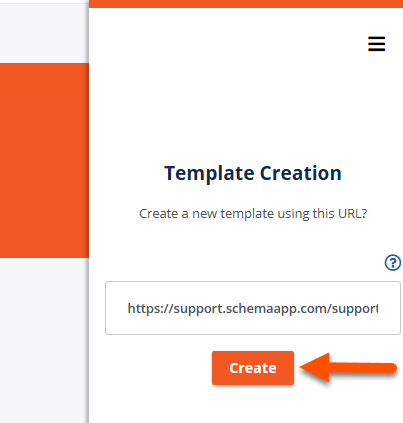
- Step 2: Select "Create"
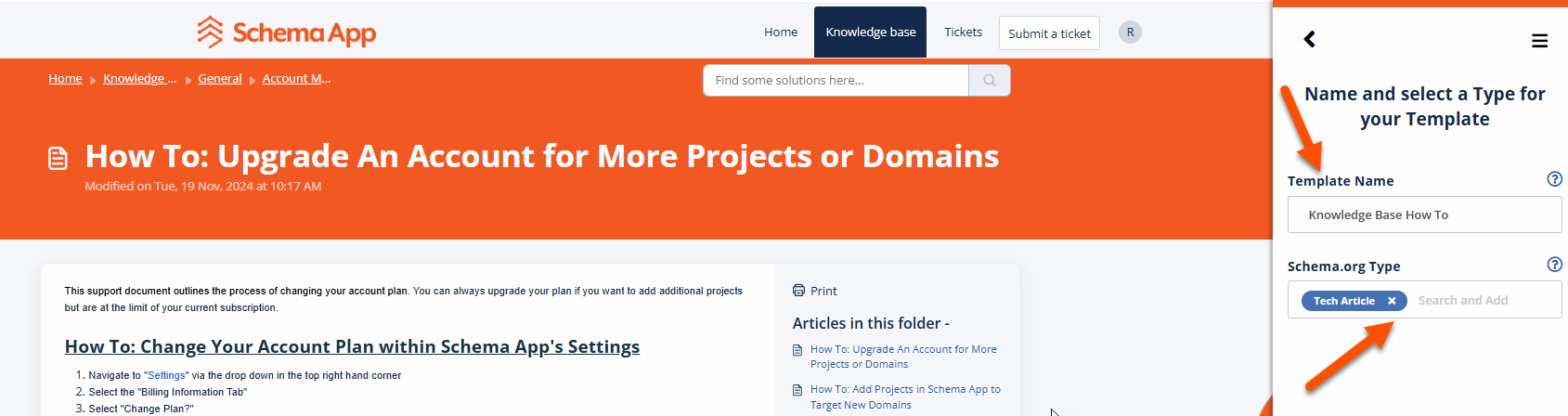
- Step 3: Add a title and choose your primary Type(s)
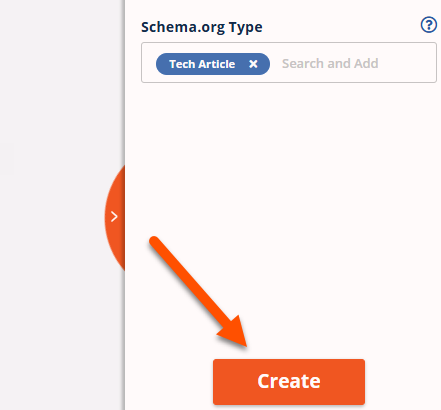
- Step 4: Create your Template
Step 1: Ensure you're on the URL you want to mark up
Navigate to your URL before selecting "Create". If you need to navigate to a different URL, the highlighter will need to reload once the page is loaded.
Note: The Highlighter Extension can only function in one tab at a time.
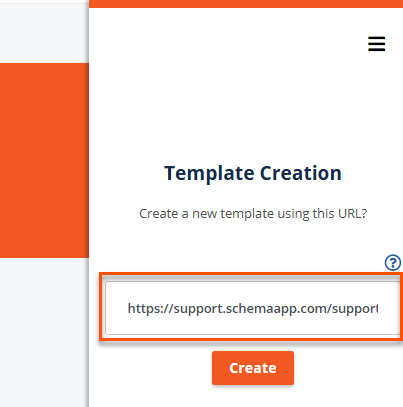
Step 2: Select "Create"
Your next step will be to step your title and type.
Step 3: Add a title and choose your primary Type(s)
Your title should be descriptive and useful. If you are running an experiment label your experiment conditions well.
Select the Type(s) you've scoped for your primary entitie(s) on this page. Multi-typing is done when an entity can be specifically & accurately described by more than one Type.
Tip: Don't multi-type with subTypes. Instead consider multi-typing like Product & SoftwareApplication, or MedicalTherapy & Service.
Step 4: Create your Template
Select the "Create" button. You will be brought to the authoring page.
Was this article helpful?
That’s Great!
Thank you for your feedback
Sorry! We couldn't be helpful
Thank you for your feedback
Feedback sent
We appreciate your effort and will try to fix the article