Use this guide if you want server-side rendering (SSR) of Schema App’s structured data (JSON-LD) for crawlers and bots, you use Akamai as your CDN provider, and your account has Edge Workers available. The instructions below explain how to install the Schema App CDN injection Edge Worker into your existing Akamai property. The worker injects JSON-LD markup from Schema App’s CDN into the <head> of HTML pages when the request is from a bot or crawler. Normal user traffic is unchanged.
Note: Currently, Akamai Server Side Rendering is only available to Enterprise (Highlighter) clients.
Prerequisites
- An Akamai account with Property Manager and Edge Workers enabled.
- Your existing property (the one that serves your website).
- Your Schema App account ID (e.g.
ExampleAccount,ExampleAccount/Test). Get this from the Schema App home page if you don’t have it.
Note: Be sure to not include the http://schemaapp.com/db/- The Edge Worker bundle (download from Schema App’s CDN; see Deploy the Edge Worker below).
Overview
You will:
- Deploy the Edge Worker bundle and note its ID.
- Add the user-defined variables to your property.
- Add a Conditional Origin rule so the worker’s CDN subrequests go to Schema App’s CDN.
- Add a Schema App Inject rule that runs the Edge Worker only for bot User-Agents.
- Configure cache key and bypass so the worker and subrequests behave correctly.
- Activate to staging, test, then activate to production.
Rule order matters: The Conditional Origin rule must be evaluated before the Schema App Inject rule (e.g. place it higher in the default rule tree)
Step-by-step setup
1. Deploy the Edge Worker
Download the bundle from Schema App’s CDN:
- URL:https://cdn.schemaapp.com/javascript/schemaapp-edgeworker.tgz
Download this file (e.g. with your browser orcurl -O https://cdn.schemaapp.com/javascript/schemaapp-edgeworker.tgz). The bundle containsbundle.jsonandmain.jsat the root, as required by Akamai.
- URL:https://cdn.schemaapp.com/javascript/schemaapp-edgeworker.tgz
Upload the bundle in Akamai:
- Control Center: Edge Workers → Create / Manage → upload the downloaded
.tgzand create a new Edge Worker (or new version of an existing one). - CLI: Use the Akamai Edge Workers CLI to upload the bundle.
- Control Center: Edge Workers → Create / Manage → upload the downloaded
Note the Edge Worker ID (e.g.
105498). You will use it when adding the Edge Worker behavior.
2. Add user-defined variables
In Property Manager, open your property and add user-defined variables (e.g. under the Variables section or in the default rule’s configuration). Use one of the two options below.
Option A: Single hostname / single Schema App account
Add these two variables:
| Variable name | Value | Notes |
|---|---|---|
PMUSER_SCHEMAAPP_ACCOUNT_ID | Your Schema App account ID (e.g. ExampleAccount) | Exact name — no leading or trailing spaces. |
PMUSER_SCHEMAAPP_CDN_BASE_URL | https://<your-property-hostname> | Same scheme + host as the request (e.g. https://www.yourdomain.com). No path, no trailing slash.Do not set this to https://data.schemaapp.com — the worker will ignore it and skip CDN subrequests. |
Option B: Multiple hostnames or Schema App accounts
Use this when one Akamai property serves more than one hostname, or more than one Schema App project on the same hostname (split by URL path). Requires Edge Worker bundle version 1.5 or later; re-download the bundle (step 1) if yours is older.
Add this one variable:
| Variable name | Value | Notes |
|---|---|---|
PMUSER_SCHEMAAPP_PROJECTS | A JSON array of projects (see example below) | Exact name — no leading or trailing spaces. |
Example:
[
  {"baseUrl":"https://en.example.com","accountId":"ExampleEN"},
  {"baseUrl":"https://fr.example.com","accountId":"ExampleFR"},
  {"baseUrl":"https://www.example.com","pathPrefix":"/en","accountId":"ExampleWebEN"},
  {"baseUrl":"https://www.example.com","pathPrefix":"/fr","accountId":"ExampleWebFR"}
]
Each entry has these fields:
| Field | Required | Meaning |
|---|---|---|
baseUrl | Yes | Scheme + host (e.g. https://www.yourdomain.com). Must be a hostname on this property, not data.schemaapp.com. |
accountId | Yes | Schema App account ID for that entry (same format as PMUSER_SCHEMAAPP_ACCOUNT_ID). |
pathPrefix | No | Match this path and anything under it (/en matches /en and /en/about). Omit to match any path on that host. |
Matching: hostname first (case-insensitive and exact, so list both www and the bare domain if both are used), then the longest matching pathPrefix. A request that matches no entry is served unchanged, with no markup.
If PMUSER_SCHEMAAPP_PROJECTS is set, the Option A variables are ignored. A one-entry list is the same as Option A.
To confirm each hostname and path maps to the right account, see How-To: Troubleshoot Akamai Integration.
Optional: Debug mode
Works with either option. Add this variable only while troubleshooting:
| Variable name | Value | Notes |
|---|---|---|
PMUSER_SCHEMAAPP_DEBUG | true | Turns on diagnostic output. Remove when done. See How-To: Troubleshoot Akamai Integration. |
Important:
- Variable names must match exactly (no extra spaces before or after).
- Each CDN base (
PMUSER_SCHEMAAPP_CDN_BASE_URL, or eachbaseUrlinPMUSER_SCHEMAAPP_PROJECTS) must be a hostname on this property. The worker sends subrequests to that host; your Conditional Origin rule then forwards those requests to Schema App’s CDN.
Note: Be sure to not include the http://schemaapp.com/db/ part of the Account ID. For example, http://schemaapp.com/db/SchemaApp must be shortened to just SchemaApp.3. Add the Conditional Origin rule (CDN proxy)
This rule sends the worker’s CDN subrequests to Schema App’s CDN. It must be a top-level rule (sibling of your other rules), and it should be placed above the Schema App Inject rule so it is evaluated first.
Create a new rule (e.g. name: Conditional Origin Definition).
Criteria:
- Request Header → Header name:
X-SchemaApp-CDN-Request - Match:Exists (or value
true).
No path or other conditions.
- Request Header → Header name:
Behaviors:
- Origin (or Origin Server / Conditional Origin):
- Origin hostname:
data.schemaapp.com - Origin type: HTTPS (port 443).
- Forward host header:Origin hostname (so CloudFront receives
Host: data.schemaapp.com). This is required; if you forward the request host instead, CloudFront may return 503. - Save the origin.
- Origin hostname:
- Optionally add CP code if your property uses it.
- Origin (or Origin Server / Conditional Origin):
Path: Forward the path as-is. Do not strip or rewrite the path. The worker sends paths like
/{accountId}/{base64PageUrl}that the Schema App CDN expects.Do not cache responses from this rule — add a Caching behavior to this rule and set it to NO_STORE (or Do not store). Responses from the Schema App CDN must not be cached by Akamai; caching of markup is managed on the Schema App side. If you omit this, a parent rule may cache these responses and bots could receive stale or incorrect JSON-LD.
Note: This section is the most likely to require troubleshooting. Your CSM may request a copy of the integration code to share with our Engineering team to review.
4. Add the Schema App Inject rule (Edge Worker)
Create a new rule (e.g. name: Schema App Inject).
Select 'Match All'. Only requests that match all the criteria will invoke the worker.
Criteria: Match → User-Agent → is one of (or Matches regex), with a list of bot identifiers.
- For example:
*SchemaBot*,*Googlebot*,*Bingbot*,*Slurp*. Make sure to add wildcards around each botname so it will match against the useragent string. Schema App maintains a recommend list of Bots here. Add or remove bots per your requirements, but ensure that
*SchemaBot*is included in this list to allow Schema App's crawler to evaluate the markup.
- For example:
Criteria: Match → Request Method → is → GET. Only requests to pages that should display Schema Markup will invoke the worker.
Behaviors:
- Edge Worker: Enable, and select the Edge Worker you uploaded (by the ID you noted earlier).
- Set Continue on error as desired (typically false).
5. Cache key and subrequest bypass
The worker fetches the page HTML from the same URL the client requested. To avoid cache collisions and infinite loops:
Cache key: Add the
X-Subrequestheader to the cache key for the behavior (or rule) that serves the Edge Worker. That way the worker’s internal “origin fetch” (which sendsX-Subrequest: true) is cached separately from the response the client receives (the modified HTML).Bypass the worker on subrequests: Add a condition (or rule) so that when the request has the header
X-Subrequest=true, the Edge Worker is not invoked. The worker itself adds this header only to its own origin fetch; normal clients do not send it. This prevents the origin subrequest from re-triggering the worker.
(Exact placement of cache key and bypass depends on your property structure; ensure the origin fetch uses a distinct cache key and does not run the worker again.)
6. Save, activate, and test
Save the property version.
Activate to Staging. In Property Manager, use Activate → Activate to Staging (or equivalent) for this version.
Test on staging:
- Send a request with a bot User-Agent to a page that returns HTML, e.g.:
curl -s -A "Mozilla/5.0 (compatible; SchemaBot/1.2; +https://www.schemaapp.com/bot/)" \ "https://<your-staging-hostname>/<path>" -o response.html - Open
response.htmland confirm you see<script type="application/ld+json" data-source="SchemaApp-Akamai:...">in the<head>(if the Schema App CDN has data for that URL). - In Akamai logs or Test Center, confirm the worker runs and that subrequests to the CDN return 200 (not 503).
- If markup is missing or subrequests fail, see How-To: Troubleshoot Akamai Integration.
- Send a request with a bot User-Agent to a page that returns HTML, e.g.:
Activate to Production when staging looks correct.
Quick reference
| What | Value or action |
|---|---|
| CDN origin hostname | data.schemaapp.com |
| Forward host header (for CDN origin) | Origin hostname (required) |
| Conditional Origin match | Request header X-SchemaApp-CDN-Request exists |
| Conditional Origin caching | NO_STORE — do not cache CDN responses on this rule |
PMUSER_SCHEMAAPP_CDN_BASE_URL | Single project: https://<your-property-hostname> (same as request host; not data.schemaapp.com) |
PMUSER_SCHEMAAPP_ACCOUNT_ID | Single project: your Schema App account ID; variable name with no trailing space |
PMUSER_SCHEMAAPP_PROJECTS | Multiple hostnames or path-split accounts: JSON array of {baseUrl, accountId, pathPrefix}. Replaces the two variables above when set. |
PMUSER_SCHEMAAPP_DEBUG | (Optional) true while troubleshooting |
| Cache key | Include X-Subrequest so origin fetch is cached separately |
| Bypass worker when | Request header X-Subrequest is present |
Troubleshooting
For debug mode, status messages, and fixes for common issues, see How-To: Troubleshoot Akamai Integration.
Data Flow Diagrams
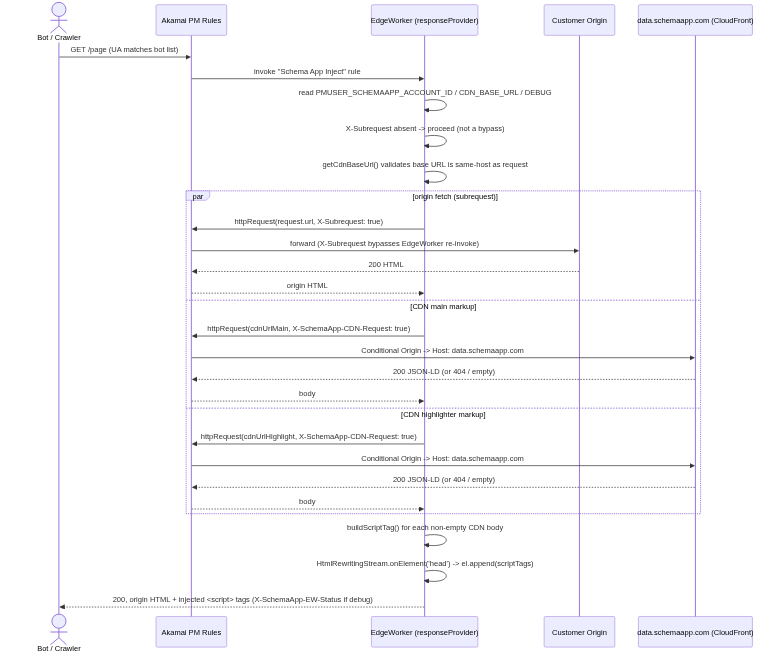
For bots you can see the flow that is taken
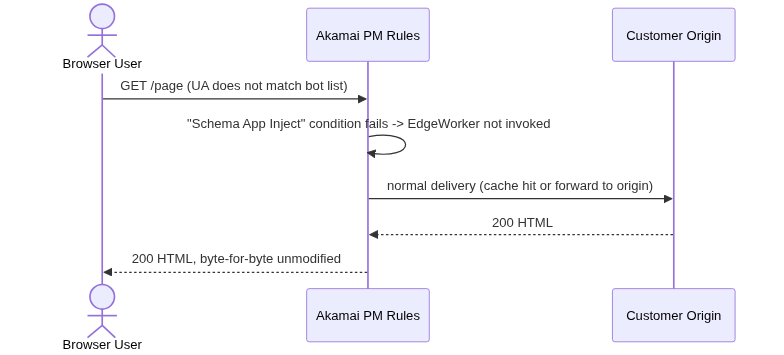
For normal web users (humans) the flow is much simpler as it skips injecting markup
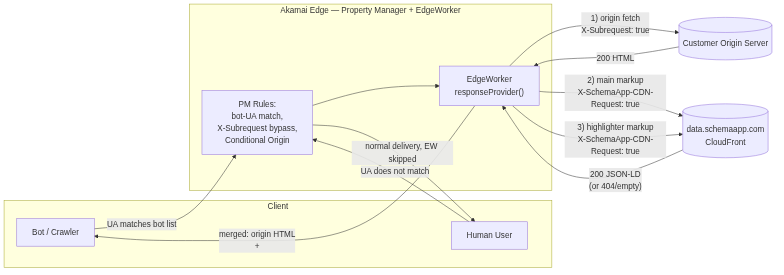
In terms of accessing the CDN the functionality is shown below
Frequently Asked Questions
How many milliseconds does the Edge Worker add to the Time to First Byte (TTFB)?
The worker only fires for bot User-Agents (a Property Manager condition), so real users have zero TTFB impact by design.
For bots, the three sub-requests — origin HTML, Schema App main JSON-LD, and the highlighter — are dispatched in parallel via Promise.allSettled. TTFB is therefore bounded by the slowest of the three, not their sum:
The HtmlRewritingStream is a streaming transformer, not a buffer, so it adds only ~1–5 ms regardless of page size.
In total for bots the typical is ~50ms.
If the Schema App API or the Edge Worker fails, does the page still render the core content, or is there a risk of breaking the source code?
The worker is well-hardened. Every CDN failure path falls back to serving the origin HTML untouched if the worker fails your page is rendered as if the worker didn't execute.
Was this article helpful?
That’s Great!
Thank you for your feedback
Sorry! We couldn't be helpful
Thank you for your feedback
Feedback sent
We appreciate your effort and will try to fix the article
